Choose video
Open BlackOut Camera and select Premium video recording from the focused home screen.
Black screen video recording
BlackOut Camera replaces the bright live camera preview with a fully black cover. Your iPhone stays unlocked and the app stays open, so recording remains active in the foreground.

The honest answer
An iPhone camera app cannot keep recording after the phone is locked as though the display were truly powered off. BlackOut solves the visual problem instead: it covers the usual bright camera interface with a clean black screen while the app remains active.
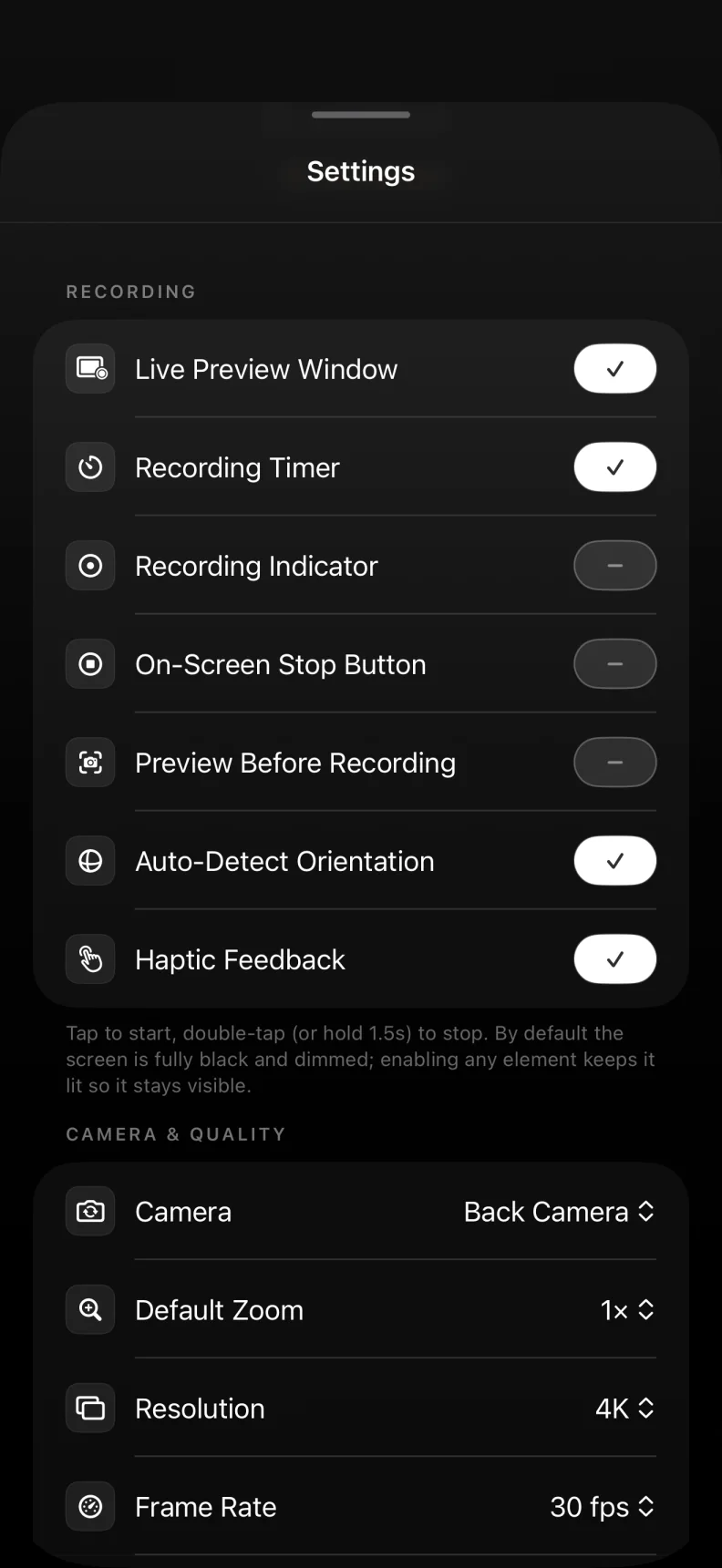
The result is the screen-off look people are searching for, without claiming background or lock-screen recording. You can keep the cover completely black or show only the timer, recording indicator, stop button, or preview you choose.
Three simple steps
BlackOut keeps the capture flow direct. Choose video, choose what appears on screen, and start recording.
Open BlackOut Camera and select Premium video recording from the focused home screen.
Use pure black, a dim cover, or your own custom image. Optional recording controls can stay hidden.
Start recording and leave BlackOut open. Your captured video is saved to the local in-app gallery.
Designed for a quieter screen
A black cover can reduce visual distraction and screen glow while keeping the camera workflow close at hand.
Keep a bright preview from lighting up the space while recording at night or in a dim room.
Reduce screen glow while observing animals or waiting quietly for a natural moment.
Use a minimal screen while your iPhone is positioned for a longer foreground recording.
Hide the preview and optional controls when you want to stay focused on the scene itself.
Black screen recording FAQ
These details explain exactly how the black screen, recording state, sound, and storage behave on iPhone.
BlackOut cannot record after the iPhone is locked. It creates a screen-off look by displaying a fully black cover while the app stays open and active in the foreground.
No. The black cover replaces the on-screen camera preview only. The saved video contains the view from the selected camera, not the black interface.
No. Recording works only while BlackOut is open in the foreground. Locking the phone, switching apps, or a system interruption can stop the recording.
Yes. Premium lets you select a custom image as the full-screen video cover. The image stays on your device and can be changed or removed in Settings.
BlackOut does not add start or stop sounds to video recording. Keep your iPhone in Silent Mode for the quietest experience. Photo capture may still make a shutter sound depending on the device and region.
Video is kept in BlackOut's local gallery by default. It is added to Photos or shared elsewhere only when you choose to save, share, or export it.
Available on the App Store
Download BlackOut Camera for iPhone and record with a black or custom cover while the app remains open.
Open App Store